Flare + Sunburst
GPT Images 2.6
Preview
Your result will appear here
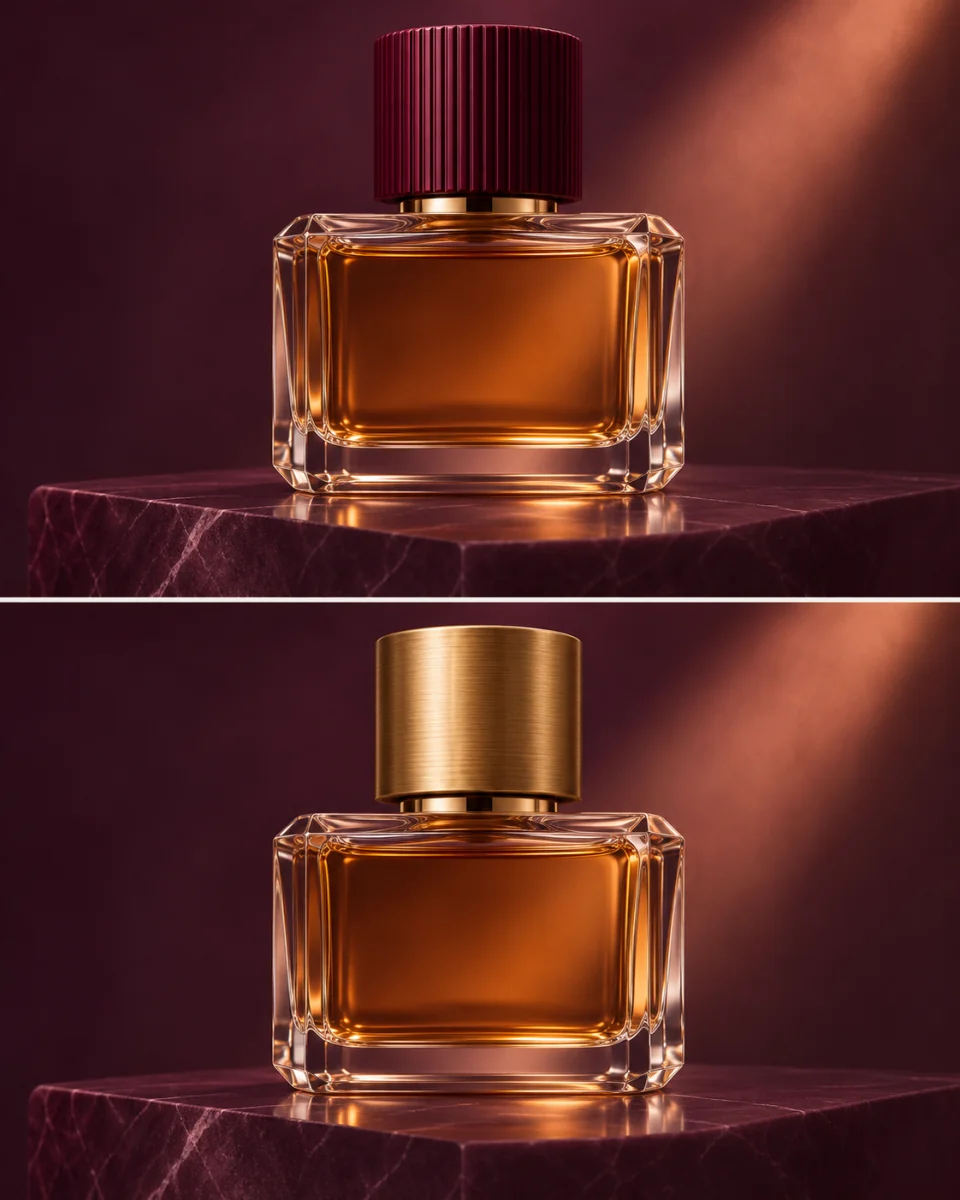
AI illustration · Perfume cap edit
GPT Images 2.6
GPT Images 2.6 — Flare and Sunburst
Choose a direction for each image: Flare for quick concept iteration, or Sunburst when fine detail and consistency across edits matter. Generate from text or edit references on ImageV2, an independent service, not the official OpenAI website.
01
Flare + Sunburst
02
Text and reference editing
03
Five quality tiers
04
Optional PNG edit mask
1K / 2K / 4K
Up to 16
Match the settings to the change you need
01
Flare for exploring a direction
Try different layouts or lighting with the same brief. Flare is positioned for fast iteration; actual waiting time depends on the request and service load.
02
Sunburst for careful revisions
Use Sunburst for detailed visual work. Name the features to preserve, then inspect them after every edit rather than assuming perfect consistency.
03
Five explicit quality settings
Choose low, medium, high, xhigh or max. Medium is the default. Quality and resolution both affect the upfront quote.
04
Reference images and local masks
In image-to-image mode, add 1–16 JPEG, PNG or WebP references. An optional alpha PNG mask must match the first image; transparent pixels mark the area to change.
05
Ratios, auto or custom dimensions
Choose a ratio at 1K, 2K or 4K. Auto reserves the largest quote tier. Custom dimensions use EvoLink; each edge must be a multiple of 16 within the displayed limits.
06
Transparent PNG at 1K
This page exports PNG. Transparency is a preview feature and is offered only with a fixed ratio at 1K to preserve fallback compatibility. Check edges and alpha before use.
Workflows for the two variants
01
Campaign layout studies
Use Flare to explore the placement of a headline and subject. Supply exact wording, then check spelling and visual hierarchy.
02
Product revisions
Start with a product reference and ask Sunburst for one specific change. Check logos, proportions and unchanged packaging details.
03
Masked corrections
Keep the main composition and mark a small region with a mask. Review the transition between edited and preserved pixels.
From a brief to a reviewed image
01
Choose a variant and describe the result
Select Flare or Sunburst. State the subject, composition, wording and what must remain unchanged.
02
Set the size and add references
Choose quality and dimensions. For a local edit, upload references first and then a matching PNG mask.
03
Review the quote, generate and inspect
The displayed quote is fixed before submission. Download the result or continue editing it as a new reference; every request is a separate task.
Using GPT Images 2.6 on ImageV2
Is this the official OpenAI website?
No. ImageV2 is an independent service. This page routes GPT Images 2.6 through EvoLink first, with Kie as the fallback for supported settings.
How is this different from GPT Images 2 and 2.5?
This page selects the 2.6 Flare or Sunburst model IDs. GPT Images 2 and 2.5 remain separate pages. The 2.6 low and medium output-token estimates differ from 2.5, so the quote is calculated separately.
Which inputs can I upload?
Use up to 16 JPEG, PNG or WebP references in image-to-image mode, up to 30 MB each on this page. Prompts accept 1–32,000 characters. A mask must be an alpha PNG matching the first reference.
How are ImageV2 credits calculated?
ImageV2 estimates output, reference and mask input, and prompt costs using published USD rates. It takes the higher provider estimate and rounds the combined total once. The quote is fixed before generation, with no later surcharge.
Can all settings use the fallback?
Kie supports the standard ratio and resolution controls. Custom pixel dimensions require EvoLink and are rejected by the Kie builder rather than silently replaced. Transparent output on this page is restricted to fixed-ratio 1K.
Does this page offer GIF, SVG or markup editing?
No. This generator produces a single PNG per task and offers a reference-based PNG mask. GIF, SVG, markup layers and the separate Economy product are not enabled here.
What does the preview illustrate?
ImageGen created this illustration to show how a localized edit can change a perfume bottle cap.
Choose the variant for your next image
Start with one clear change, then review the full result.
Provider documentation and related models
- EvoLink · Flare ↗
Current Flare parameters and token rates.
- EvoLink · Sunburst ↗
Current Sunburst parameters and token rates.
- Kie · GPT Image 2.6 ↗
Kie availability, model IDs and pricing.
- GPT Images 2.5 ↗
The separate GPT Images 2.5 model page.
- GPT Images 2 ↗
The separate GPT Images 2 model page.